Password Managers vs Built‑In Browser Password Saving: Which One Actually Keeps You Safer (and Sane)?
Both can remember your logins, but they don’t protect you the same way. Here’s how password managers compare to browser saving in real life.
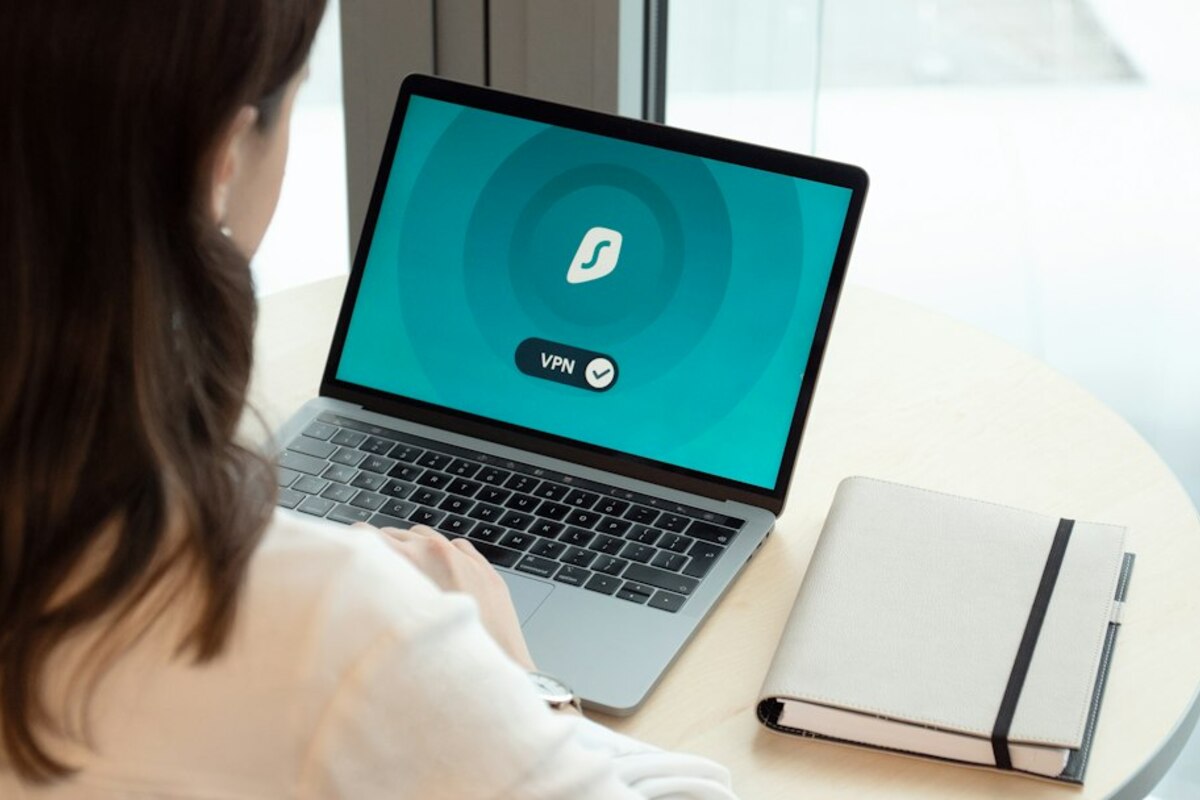
- Browser saving is convenient, but dedicated managers usually offer stronger security features and better organization.
- The “best” choice depends on your devices, sharing needs, and how often you sign in on new computers.
- A good setup isn’t just storage—it’s unique passwords, autofill you can trust, and a recovery plan if you lose access.
The everyday problem: too many accounts, too little brain space
Think about a normal week: you sign into email, banking, streaming, food delivery, your workplace tools, and maybe a few shopping sites. Each login is a tiny decision point: What was that password again? The modern internet quietly nudges people toward the same “easy” password everywhere—or toward a handful of small variations (Password1!, Password2!, and so on). That’s like putting the same key on every door you own and hoping no one copies it.
Two common solutions show up for non-experts:
- Built‑in browser password saving (Chrome, Safari, Edge, Firefox) that offers to “Save password?” and later autofills it.
- Dedicated password managers (like 1Password, Bitwarden, Dashlane, Keeper, etc.) whose main job is storing and generating passwords.
They can look similar on the surface—both remember logins and autofill forms. But under the hood, the differences can matter a lot when you’re dealing with phishing attempts, shared family accounts, switching devices, or a lost phone.

How each option works (in plain language)
Browser password saving is like a notepad that lives inside your browser. When you log in, it offers to store your username and password. Later, when you return to the site, it can autofill the login form. Most browsers also sync saved passwords if you’re signed into the same browser account (for example, Chrome syncs with your Google account; Safari syncs with iCloud Keychain).
A dedicated password manager is more like a locked filing cabinet designed specifically for secrets. It stores passwords, passkeys (increasingly), secure notes, credit cards, IDs, and sometimes documents. You unlock it with one “master password” (and ideally a second factor, like an authenticator app). Then it fills logins across many browsers and apps via extensions and mobile autofill.
Here’s a helpful way to picture it:
Browser saving = the glove box in your car. Convenient and close by, but not designed for high-value storage.
Password manager = a small safe at home. It takes one extra step, but it’s built for protecting valuables and organizing them.
| Feature | Browser password saving | Dedicated password manager |
|---|---|---|
| Best at | Quickly autofilling on the same browser | Managing lots of accounts across devices, browsers, and apps |
| Password generator | Usually basic (varies by browser) | Typically robust (length/complexity controls, reuse alerts) |
| Phishing protection | Some checks, but can be inconsistent | Often stronger domain matching and warnings |
| Sharing | Limited or awkward | Commonly supports secure sharing (family/team vaults) |
| Cross‑platform | Good inside that ecosystem (e.g., Apple, Google) | Designed for mixing devices and browsers |
| Recovery options | Tied to your browser account recovery | Varies; usually emphasizes recovery keys/emergency access |
The table makes it look straightforward, but real life is messy—so let’s walk through the moments people actually care about.
Real-life scenarios: where the differences show up fast
Scenario 1: You get a “Your bank account is locked” email.
You click the link. The page looks right. The login box is there. Your browser offers to autofill your bank password.
This is where phishing is dangerous: the page can be a convincing fake with a slightly wrong address (like mybank-secure.com instead of mybank.com). In an ideal world, autofill only triggers on the exact legitimate domain.
Many dedicated password managers are very strict about domain matching—they’ll refuse to autofill if the website isn’t the one you saved. Some will show a warning or simply not offer the credential. Browsers can also be strict, but behavior varies based on settings, the exact form, and how the site is built. The key idea: a good password manager tends to behave like a cautious friend who says, “This doesn’t look like the usual place you log in.”
Scenario 2: You’re signing in on a work laptop, a friend’s computer, or a hotel business center.
Browser saving is great when it’s your browser profile on your device. It’s less great when you’re using a temporary or shared machine. You might not want to sign your entire browser account in, and you definitely don’t want to leave passwords behind.
A password manager can help here because you can sign in, use it, then sign out (and many have settings like clipboard timeouts, auto-lock, or restricting access). It’s still important to be cautious on shared devices, but a dedicated manager is built around the assumption that you’ll move between environments.
Scenario 3: Your family shares a few accounts.
This is incredibly common: streaming services, smart home apps, or a shared shopping account. With browser saving, people often end up texting passwords or writing them in notes—then forgetting to update everyone when the password changes.
Many password managers offer family vaults where you can share access without constantly exposing the password in a text message. Some even allow you to share an item so the other person can use it without seeing the raw password (depending on the product and settings). It’s the difference between lending someone your house key versus giving them a copy you can revoke later.
Scenario 4: You’re trying to clean up your digital life.
At some point, people wonder: “How many accounts do I have? Which passwords are reused? Which sites were in a breach?” Dedicated password managers usually include dashboards that flag weak passwords, reused passwords, and sometimes compromised passwords (based on breach databases). Browsers are starting to add similar features, but dedicated managers often go further and make it easier to act on the information.
Scenario 5: You switch ecosystems.
If you live entirely inside one ecosystem—say, Apple devices using iCloud Keychain, or Chrome on multiple devices—browser saving can be surprisingly solid. But if you mix Windows + iPhone, or use multiple browsers, or have a Linux machine, things can get awkward. Dedicated password managers are typically built to be ecosystem‑agnostic.
What “safer” really means here (and what it doesn’t)
It’s tempting to ask, “Which is secure?” But security isn’t a binary on/off switch—it’s a set of tradeoffs and habits.
Here are the big security factors most non-experts can actually use:
- Unique passwords for every site: This is the number one win. If one site leaks your password, attackers won’t be able to use it elsewhere.
- Strong, random passwords: Not “uncrackable forever,” but strong enough that guessing and automated attacks are unrealistic.
- Protection against phishing: Autofill that only works on the right site can prevent “I accidentally typed it into the fake page.”
- Device security: If someone can unlock your computer/phone, they may be able to access saved passwords—whether they’re in a browser or a password manager.
- Account recovery: If you lose access to your vault or browser account, you need a way back in that doesn’t involve panic.
Browser saving can be “safe enough” when:
- You use a strong login for your browser account (Google/Apple/Microsoft), plus two-factor authentication.
- Your devices are locked with a PIN/biometrics and you keep them updated.
- You mostly use one ecosystem and one browser.
A dedicated password manager tends to be safer in practice when:
- You want strong password generation everywhere, not just occasionally.
- You manage a lot of accounts (work + personal) and need organization.
- You share credentials with family/teams and want to avoid insecure texting.
- You frequently sign in across different browsers/devices.
One important note that surprises people: the biggest risk often isn’t “where you store passwords,” but “what happens when you reuse them.” If you reuse the same password on 10 sites, and one gets breached, attackers can try that password everywhere else automatically. Both browser saving and password managers can store reused passwords; the difference is that password managers make it easier to stop reusing them.
Quick checklist: which direction fits you?
- Choose browser saving if you want the simplest option, stick to one ecosystem, and you’re ready to secure your main account with strong 2FA.
- Choose a password manager if you want better sharing, better organization, better password hygiene tools, and flexibility across devices.
It feels risky, but the idea is that the “one place” is heavily protected (encryption, master password, device locking, and ideally 2FA). In practice, a well‑secured vault plus unique passwords usually lowers your risk compared with reusing passwords or keeping them in notes. The tradeoff is that you must protect the master password and have a recovery plan.
It feels risky, but the idea is that the “one place” is heavily protected (encryption, master password, device locking, and ideally 2FA). In practice, a well‑secured vault plus unique passwords usually lowers your risk compared with reusing passwords or keeping them in notes. The tradeoff is that you must protect the master password and have a recovery plan.
Usually: better sharing, better organization (vaults, tags, separate work/personal), stronger auditing (reused/weak passwords), and more consistent autofill across browsers and apps. Some managers also offer extras like masked emails, secure notes, and item history.
Usually: better sharing, better organization (vaults, tags, separate work/personal), stronger auditing (reused/weak passwords), and more consistent autofill across browsers and apps. Some managers also offer extras like masked emails, secure notes, and item history.
Not securing the account that controls everything. For browser saving, that means a weak Google/Apple/Microsoft account password or no 2FA. For password managers, that means a weak master password, skipping 2FA, or not writing down a recovery method. Convenience is great—until you’re locked out or compromised.
Not securing the account that controls everything. For browser saving, that means a weak Google/Apple/Microsoft account password or no 2FA. For password managers, that means a weak master password, skipping 2FA, or not writing down a recovery method. Convenience is great—until you’re locked out or compromised.
Whether you choose browser saving or a dedicated manager, the “win” is the same: turning passwords into something you don’t have to memorize, so you can make them strong and unique without the daily frustration. The difference is how much control, organization, and safety rails you want while you do it.